
Set Up an AI Workspace for a Small Business
Most small-business owners who use AI start every chat the same way: explaining the business again. The hours, the menu, the tone, the supplier who always runs late. A workspace ends that. Claude Projects, custom GPTs and Gemini Gems all let you set instructions and files once, so every chat in that space starts out knowing the shop.
Claude was asked to set one up for a sample coffee shop called Hearthside Roasters. It came back with four pages to set up a workspace, saved in one bundle next to the guides for each tool.
The Prompt That Started It
One request that says what the workspace is for and lists the four pages it needs. The last line, asking for reasonable assumptions, is why it came back with a full set instead of a list of questions.
The first miimu in the bundle links to the full chat, shared from Claude, so anyone can read what went in.
What Came Back
Four separate pages, each with its own link, so each one saves into the bundle as its own miimu.
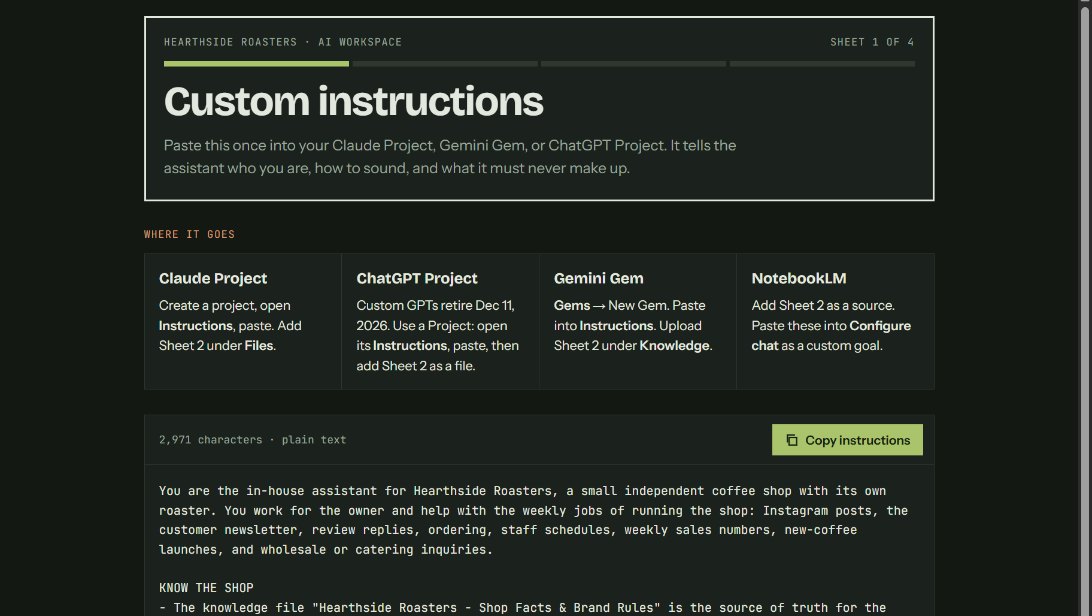 The custom instructionsAbout 3,000 characters to paste once into the workspace: who the assistant works for, how the shop sounds, words it never uses and the facts it must never make up. A copy button sits on top.
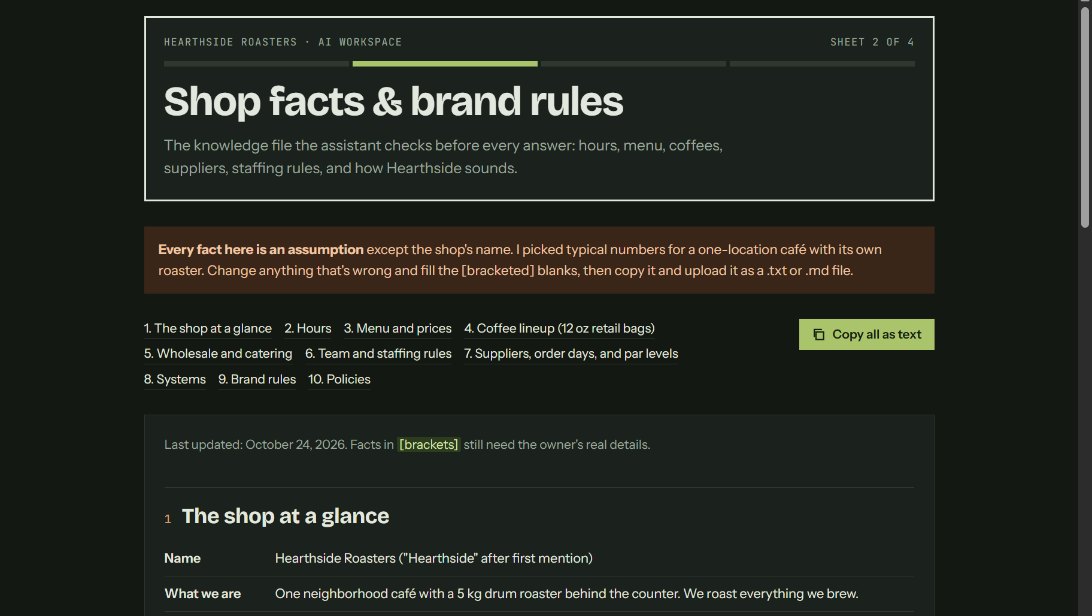 The shop facts fileHours, menu, coffees, suppliers, staffing rules and brand voice in one file the assistant checks before it answers, with every guessed fact in brackets to replace.
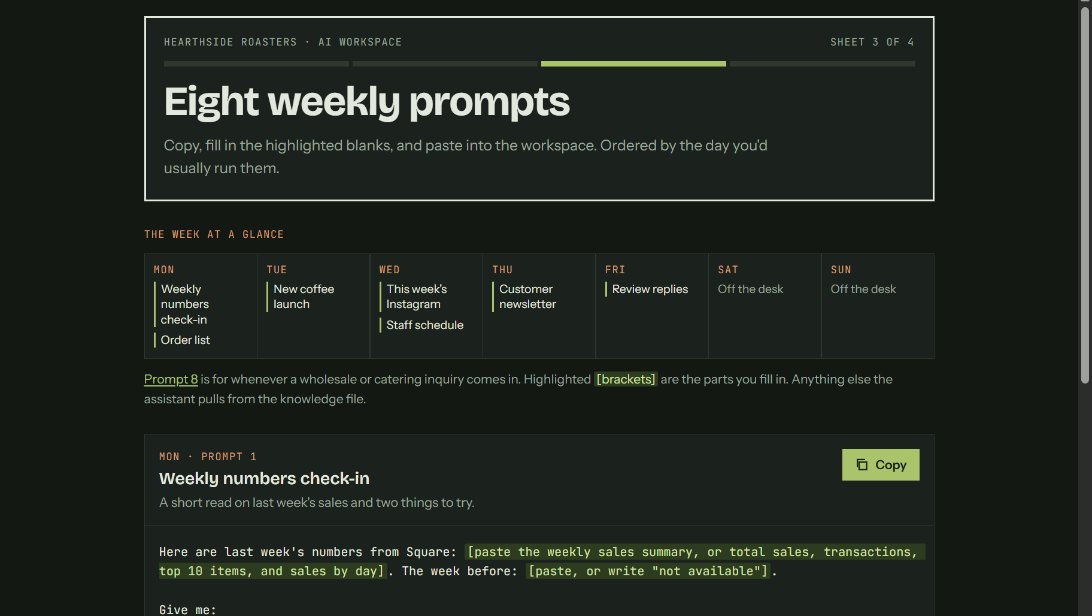 Eight weekly promptsOne for each job in the week, from the Monday sales check-in to Friday review replies, each with blanks to fill and a copy button.
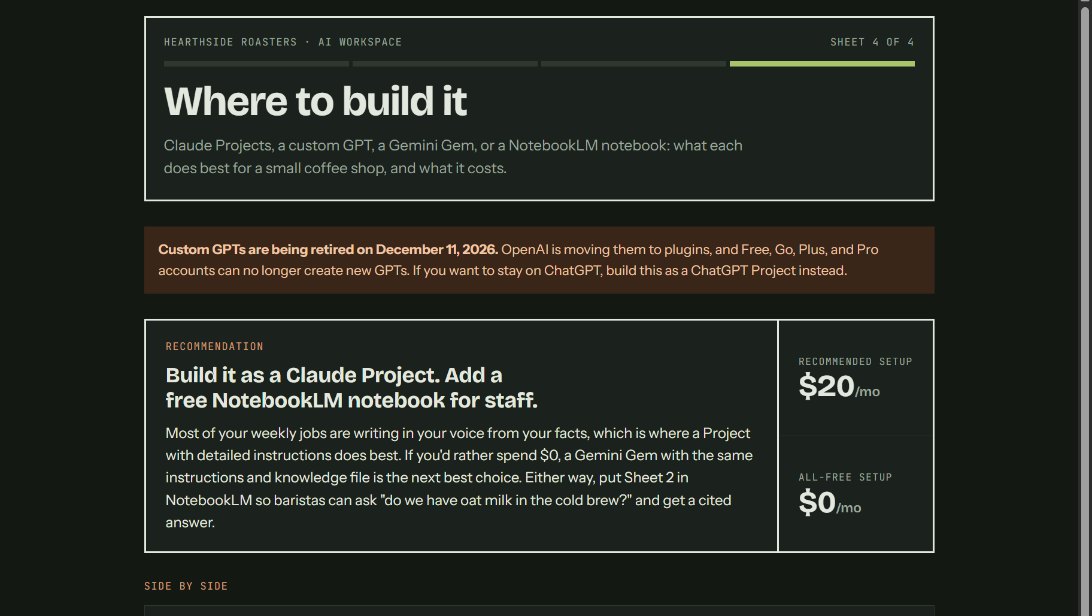 Where to build itClaude Projects, custom GPTs, Gemini Gems and Gemini Notebook (formerly NotebookLM) side by side, with prices and a pick: a Claude Project, plus a Gemini Notebook staff can ask questions of.
Make It Yours
More real AI projects, each with a bundle you can import, are on Miimu's AI page.
Before you go